Getting Started
Get up and running in just a few minutes. Caiioo works on Chrome, Safari, Edge, macOS, Windows, Linux, iOS, and Android.
Install Caiioo
Pick your platform:
Chrome or Safari Extension
- Go to the Chrome Web Store (or App Store for Safari) and search for Caiioo
- Click Add to Chrome (or enable the extension in Safari settings) and confirm
- Click the Caiioo icon in your toolbar to open the sidepanel
macOS App
- Download Caiioo from the App Store or our website
- Open the app—it'll open in your dock
- The app includes built-in browser automation and calendar integration
Windows or Linux
- Download the app installer from our website
- Run it and follow the setup steps
- The app runs a local server for browser control and more
- Auto-update starts with v0.9.717+
iOS or Android
- Download the Caiioo app from the App Store (iOS) or Google Play (Android)
- Sign in with your account to sync conversations from other devices
- Everything syncs via encrypted cloud backup
Your First Conversation
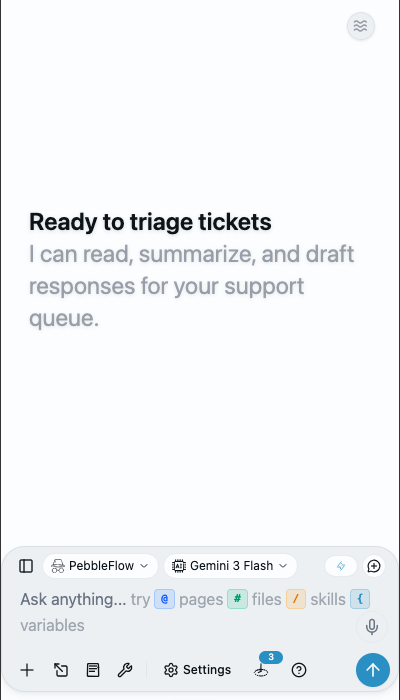
- Open Caiioo (browser extension, desktop app, or phone)
- Sign in with Google, Apple, Microsoft, or email
- Pick an AI model — bring your own API key (OpenRouter for 500+ models, Google AI, or local Ollama), or start immediately with our free provisioned key
- Type a message and press Enter
- The AI responds and can use tools (like web search, file reading, or calendar access) automatically
That's it. Caiioo handles all the AI orchestration behind the scenes.
Simple Mode (New Default)
Simple Mode is now the default for new users (v0.9.720). On first run, you'll see:
- A visible model picker (always available)
- A compact stat strip: context-window ring + total tokens + cost + remaining credit
- Hidden per-message token/cost, compression dropdown, and tab-context indicators
Click the eye icon to reveal or hide the full detail strip.
Zen or Studio
The pill at the far right of the header switches how much the app shows you.
- Zen Mode (the default) keeps the screen quiet — message buttons appear when you hover or tap a message, and per-message model badges stay out of the way.
- Studio Mode turns everything on: model badges, per-message detail, telemetry, and diagnostics.
Press ⌥⌘Z for Zen and ⌥⌘S for Studio (Alt+Ctrl+Z / Alt+Ctrl+S on Windows and Linux). Settings has the same pill and follows your choice.
The Settings Panel
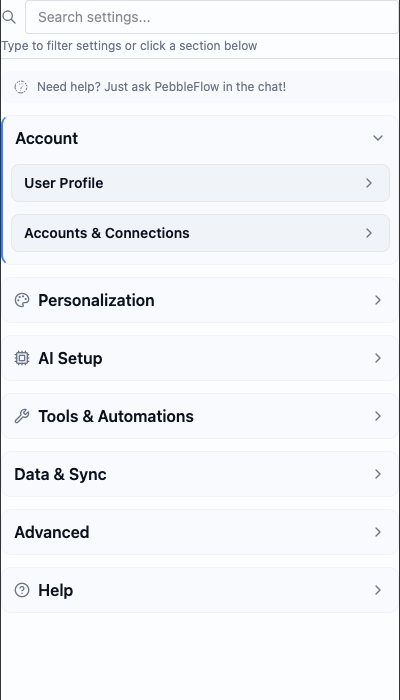
Click the gear icon to customize things. The full settings view is organized into seven categories:
| Category | What's Here |
|---|---|
| Account | User Profile (your account, plan, and profiles), Account Authorizations and Permissions (connected services and credentials), Team |
| Personalization & Privacy | Appearance (theme, font size, Minimal settings toggle), Personalization (including Location Sharing and custom variables), Pseudonymizer, Privacy & Diagnostics, Remote AI Providers, Scheduled Tasks |
| AI Setup | AI Provider (your API keys and provider accounts), Model Configuration (default model, creativity, max steps), Voice |
| Tools, Modes & Apps | Community Hub, My Apps, Agent Modes, Skills Library, Tool Configuration, Permissions, AI Integrations (MCP), Document Processing, Cards, Views, Workflows, and more |
| Data | Backup & Restore, Shared pages (everything you've published to the web), Data Management |
| Connectivity | Connections (Private Relay and Caiioo Bridge), Private Sync, Private Constellation (Multi-device Continuity), API Access, Messaging Gateway |
| Help | Documentation & Legal (this guide, privacy policy, terms), Support & Diagnostics |
Minimal settings: New users start with a simplified settings view that shows only the essentials. Turn the Minimal settings toggle off (in the Appearance section — listed under Account while Minimal settings is on) to see everything, including power-user controls.
Tip: You don't need to dive into all these settings right away. Caiioo comes pre-configured with sensible defaults. Customize as you go.
In-App Guide Search
Search the user guide from the Document menu (v0.9.717+). Results deep-link to caiioo.ai/guide.
Use Caiioo in a Browser on Another Device
You can use Caiioo in a browser on your phone, tablet, or another laptop, with everything still running on your main computer. Two options:
Remote access (works anywhere): In Settings > Connectivity > Connections, turn on Private Relay, copy the relay.caiioo.ai/app address that appears, open it in any browser on the other device, and sign in with the same account. No code needed; end-to-end encrypted.
Caiioo Bridge (same network, with a code):
- Go to Settings > Connectivity > Connections > Caiioo Bridge > Pair a device
- A 6-character code appears — valid for 5 minutes, single-use
- Open the same URL on the other device and enter the code
- Rate limit: 10 attempts per IP per minute
- Server restart re-pairs cleanly
If the address begins with https://, your browser warns once that the certificate is self-signed — it comes from your own computer, not the wider internet. Continue past the warning; without accepting it, secure features are unavailable on that device.
The desktop app stays on this computer by default. LAN access is opt-in via Settings > Connectivity > Connections. Tokens are only handed out to localhost requests even when LAN access is enabled.
Account Deletion
Want to delete your account? Go to the Account page on our website (also linked from the iOS app per Apple's requirement). This deletes:
- Your profile and display name
- Sign-in credentials (email/Google/Apple)
- AI credit balance
- Encrypted provisioned OpenRouter key
- Minimal audit logs are retained for security
Custom OAuth (Pro)
At Pro tier, Settings > Account > Account Authorizations and Permissions lets you plug in your own Google Workspace OAuth client, your own Microsoft 365 OAuth client, or any generic OAuth provider. Useful when your org won't whitelist Caiioo's client ID.
This guide is maintained by the Caiioo team using Slate, our built-in editor.